WP Smart Content WordPress Plugin

Basic Information
WordPress Extension Link:
Contributors: vinodsebastian
Version: 1.3.4
Description
Easily inject HTML, CSS, JS, styles, scripts & tracking code via hooks / shortcodes with safe mode, scheduling, revisioning & geotargeting.
WP Smart Content WordPress Plugin Overview
WP Smart Content WordPress Plugin In Action
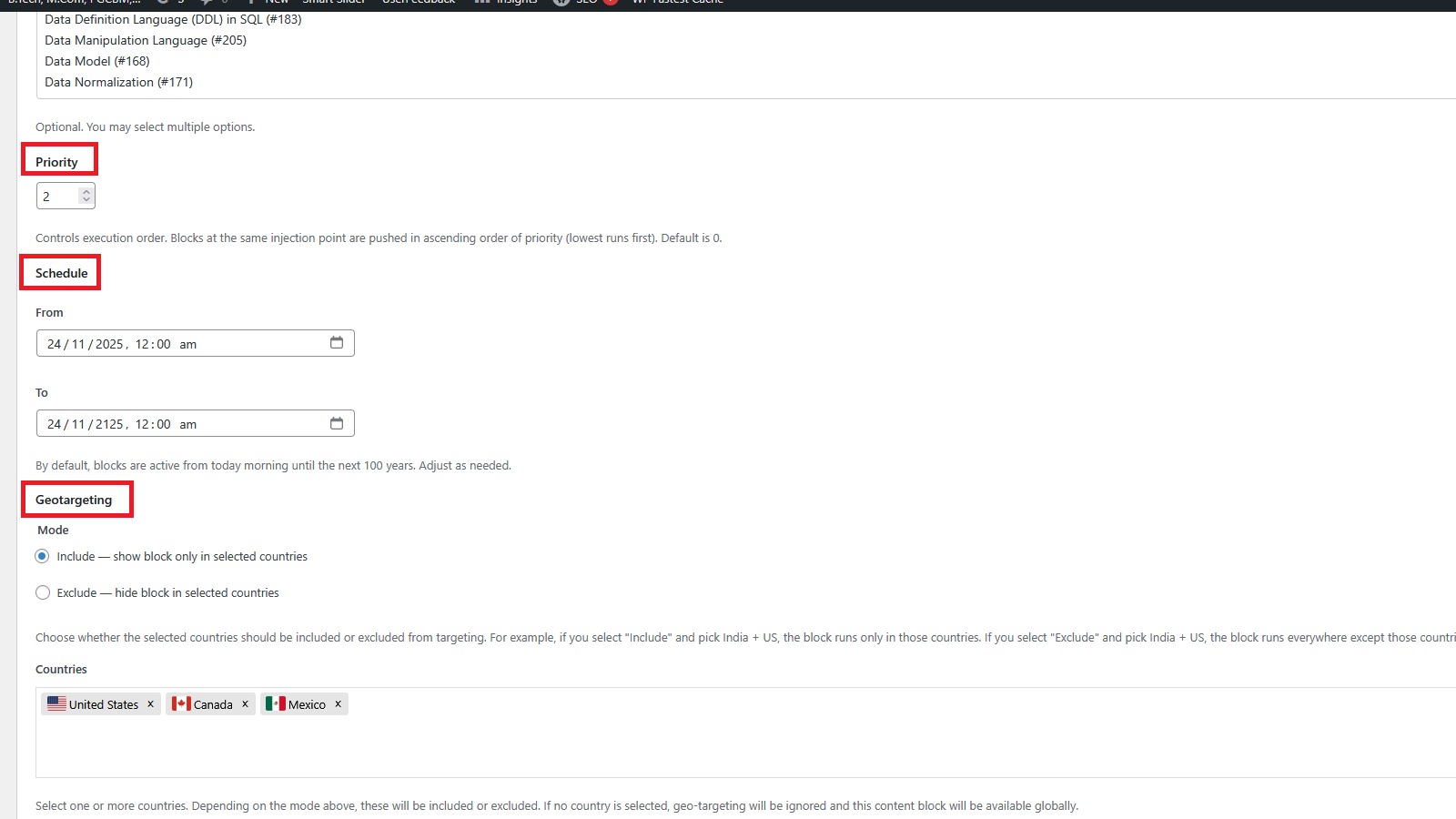
⏱ Schedule when you want
Define start and end dates so snippets appear only when needed — ideal for campaigns, seasonal banners, or compliance notices.
📍 Publish where you want
Inject HTML, JavaScript, or CSS styles into any WordPress hook — Classic or Block Hook — without editing templates. Embed blocks directly inside posts, pages, or widgets using shortcodes.
🌍 Filter where you want
Control visibility across WordPress sections: all, frontend, posts, pages, backend (Admin), authentication, and system pages. Apply filters to selected posts or pages for complete flexibility.
🌐 Target who you want
Use geotargeting to display blocks only to visitors from selected countries. Configure rules to include or exclude specific regions.
🔒 Manage safely by whom you want
Administrators can use Raw Mode (unfiltered output) or Safe Mode (sanitized injection). Non-admins can be granted limited Safe Mode access via the wpsc_admin capability, making delegation secure.
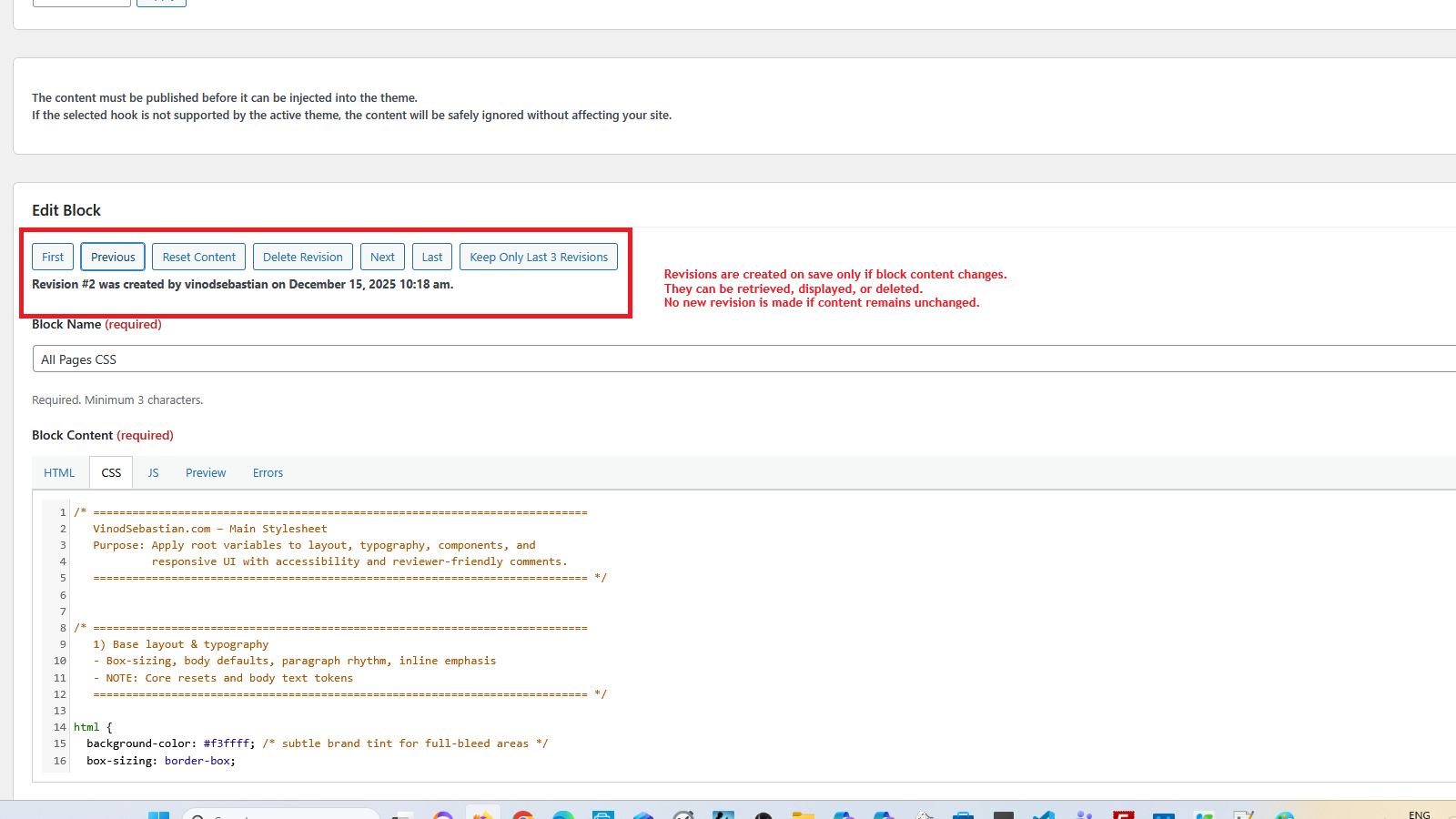
🗂 Revision when you want
Retrieve, compare, and restore block editor content with full revision management. Delete outdated revisions safely to keep the database clean and audit-friendly.
🖊️ Edit how you want
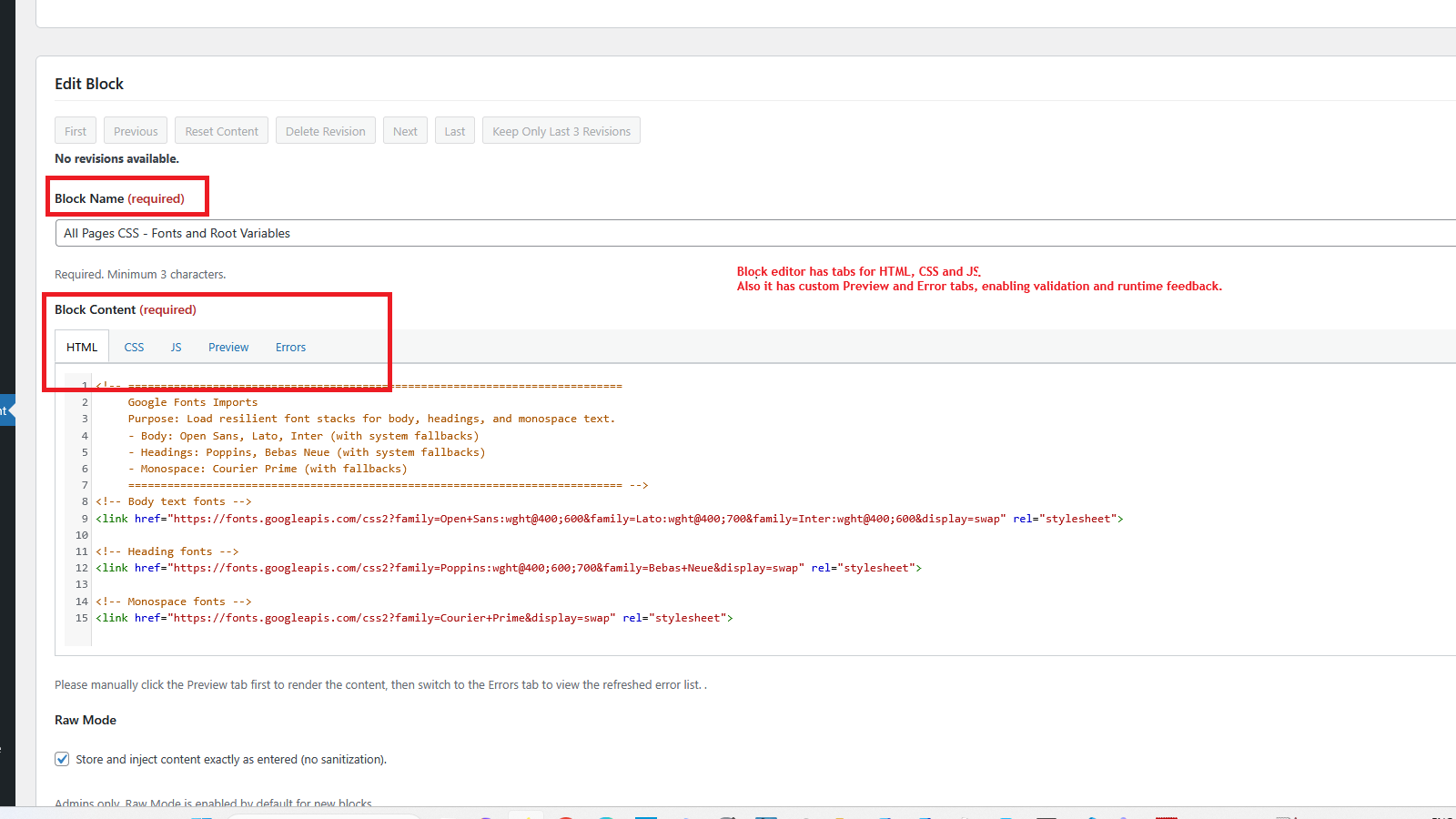
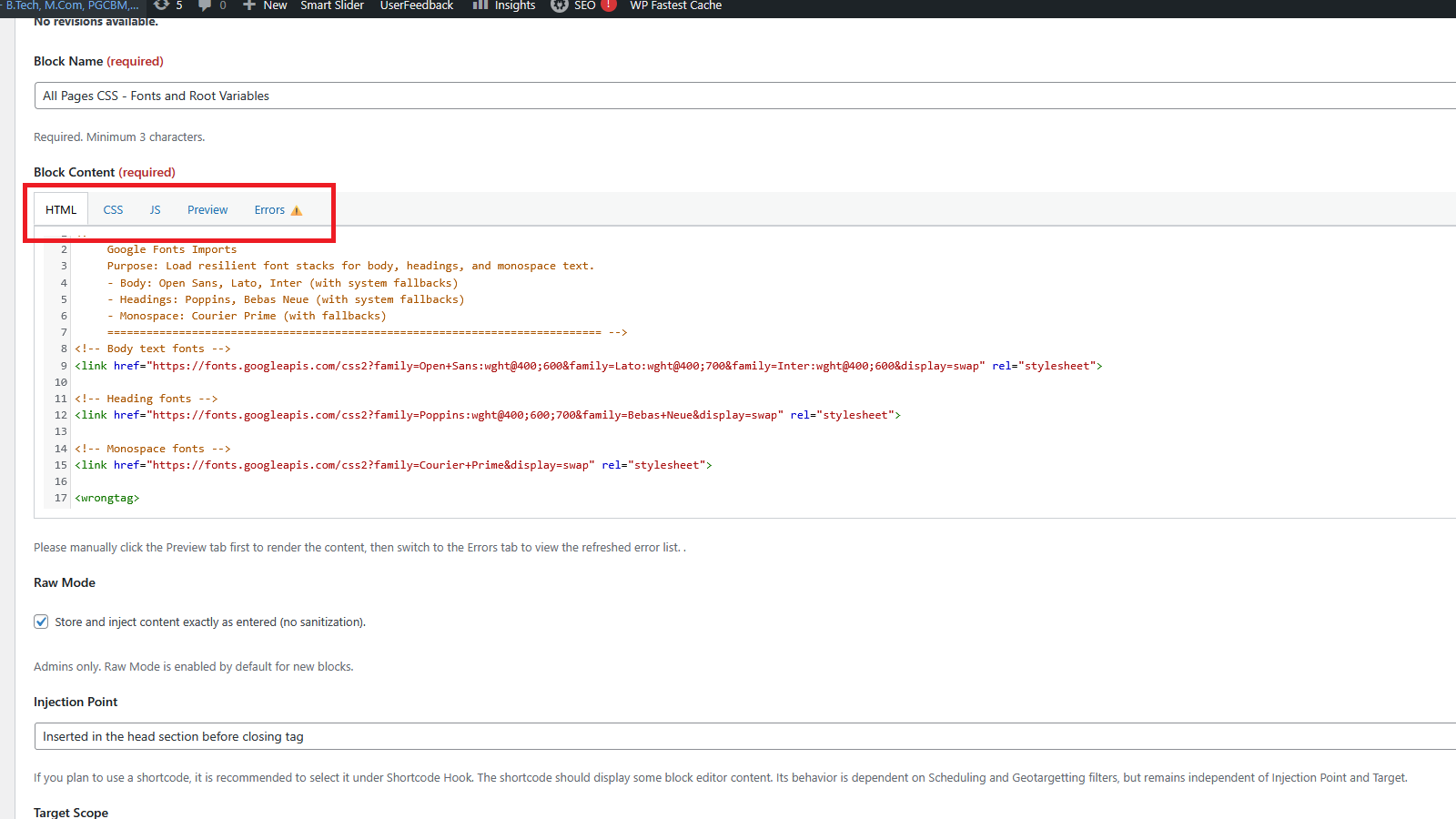
Includes a built-in editor with dedicated sections for HTML, CSS, and JavaScript, plus Preview and Error panels. Syntax highlighting improves readability, while instant error feedback ensures safe workflows.
✅ Why WP Smart Content?
By combining scheduling, hook targeting, filtering, geotargeting, role-based permissions, revisioning, and a syntax-highlighted editor, WP Smart Content ensures snippets are placed exactly where and when you want them — managed safely by the right people. It’s a compliance-ready, SEO-friendly solution that keeps your WordPress site secure, scalable, and easy to maintain. Supports Classic & Block Hooks, grouped dropdowns, translation readiness, and a reviewer-friendly modular codebase with clear documentation.
✨ Key Features
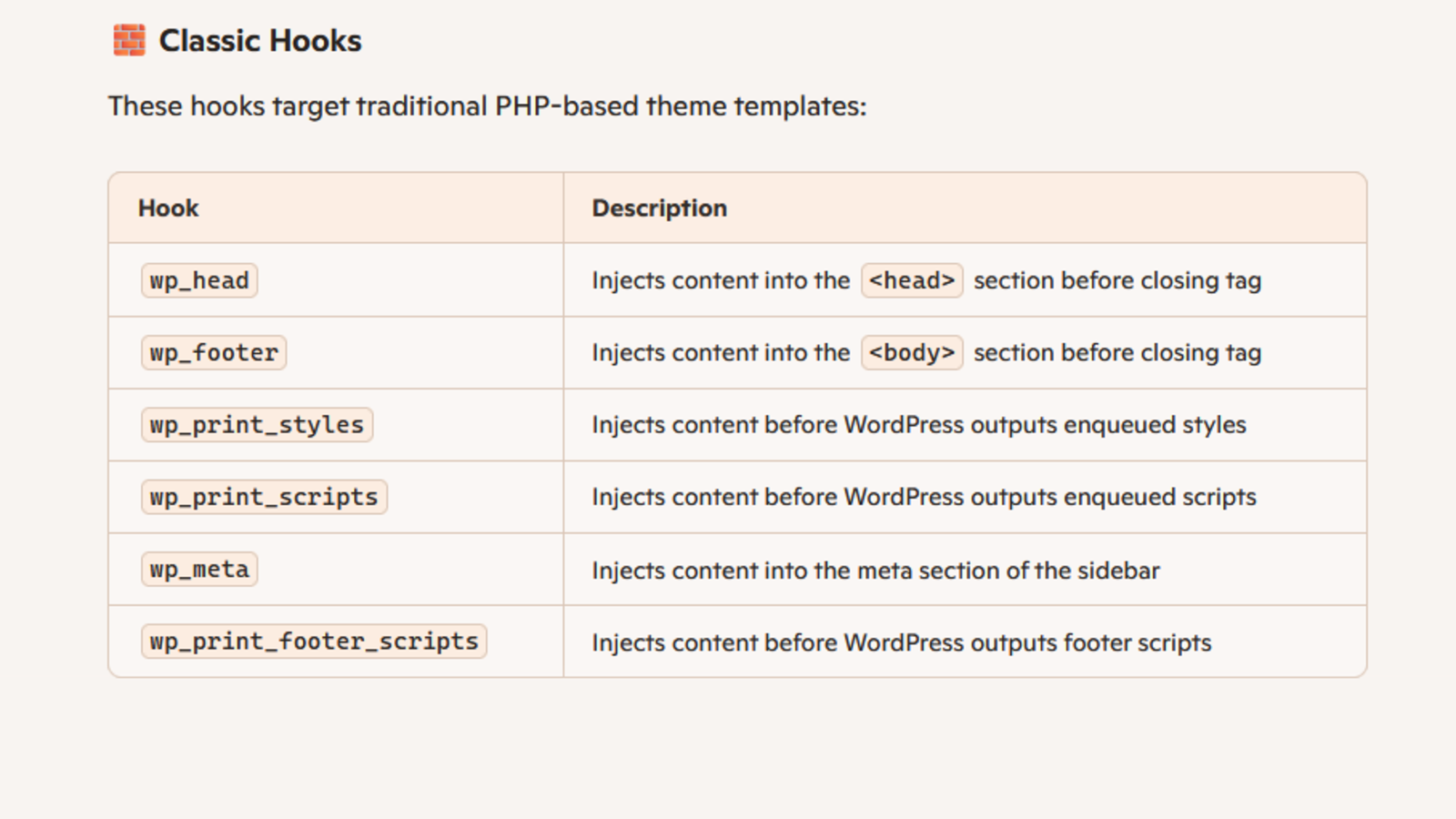
- Classic Hooks: Inject content into wp_head, wp_footer, styles, scripts, meta, and footer scripts.
- Block Hooks (WP 6.8+): Add content anywhere via the block editor UI.
- Grouped dropdowns: Organized separation of Classic and Block Hooks in admin.
- Translation ready: Updated .pot file for localization.
- Reviewer-friendly: Modular code, clear docs, and WordPress coding standards compliance.
💡 Use Cases
- Add a script to the <head> section without editing theme files.
- Insert HTML into the <footer> for custom notices or widgets.
- Push CSS before WordPress outputs styles for precise control.
- Inject a notice after post content using Block Hooks.
- Manage analytics or marketing tags centrally, without touching templates.
- Schedule snippets to run only during campaigns or seasonal events.
- Delegate Safe Mode CSS editing to a designer or contributor without exposing Raw Mode or sensitive site access.
- Display region-specific banners or compliance notices using geotargeting (include/exclude selected countries).
- Control visibility across frontend, posts, pages, admin, authentication, or system pages with scope targeting.
Hooks
WP Smart Content provides several hooks for developers to extend or customize behavior:
Classic Hooks
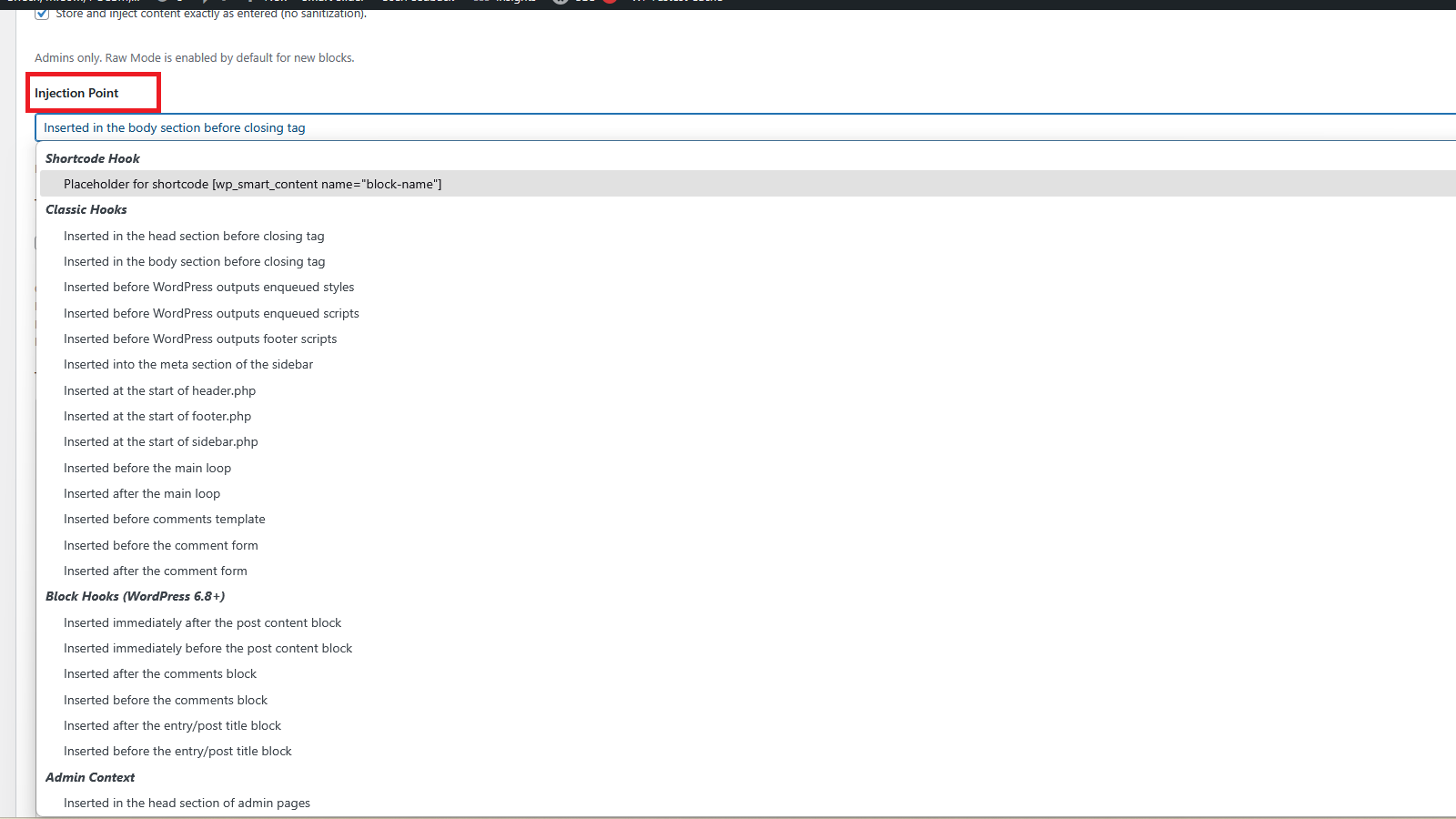
- wp_head – Injects content into the <head> section before closing tag
- wp_footer – Injects content into the <body> section before closing tag
- wp_print_styles – Injects content before WordPress outputs enqueued styles
- wp_print_scripts – Injects content before WordPress outputs enqueued scripts
- wp_meta – Injects content into the meta section of the sidebar
- wp_print_footer_scripts – Injects content before WordPress outputs footer scripts
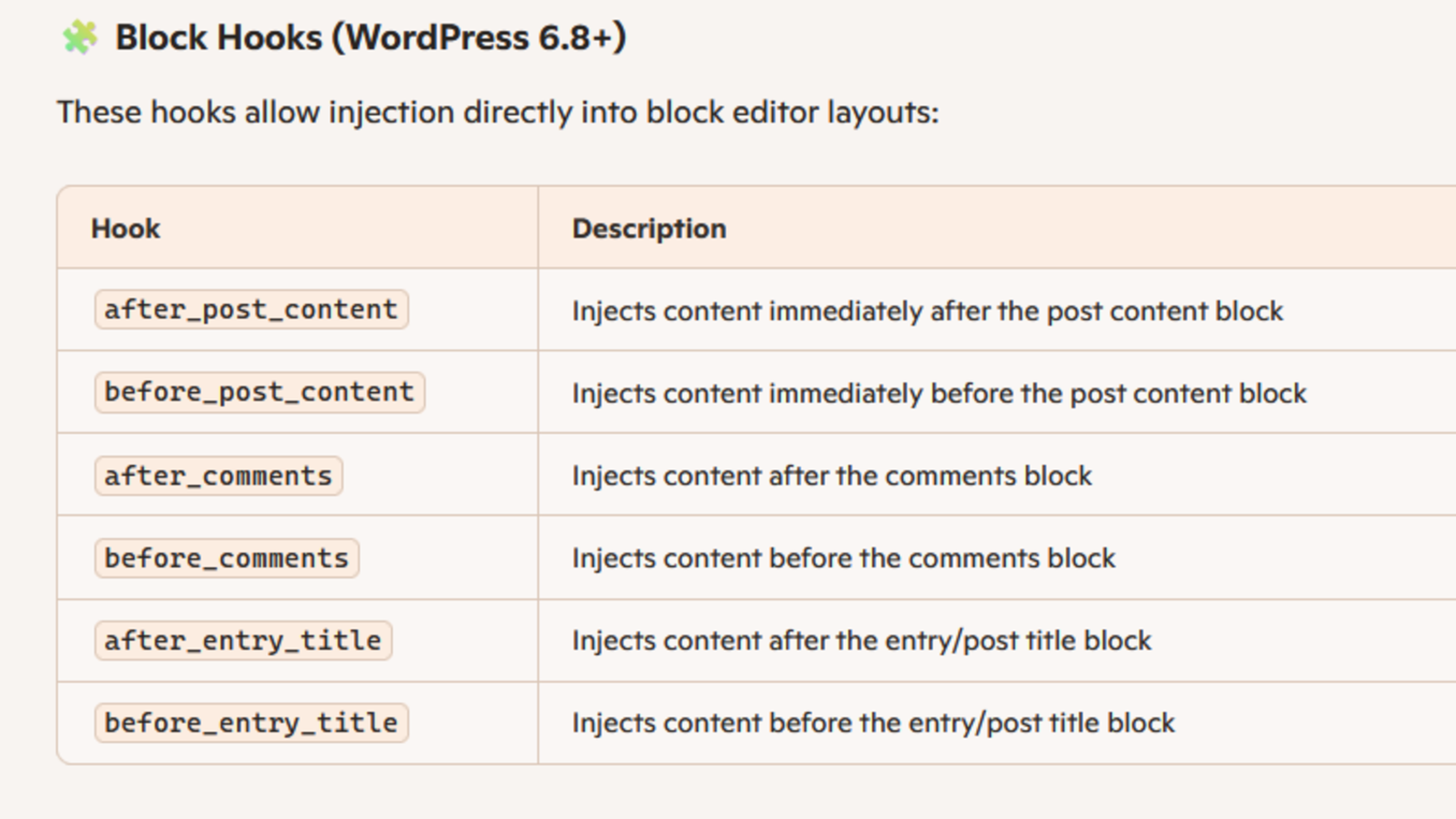
Block Hooks (WordPress 6.8+)
- after_post_content – Injects content immediately after the post content block
- before_post_content – Injects content immediately before the post content block
- after_comments – Injects content after the comments block
- before_comments – Injects content before the comments block
- after_entry_title – Injects content after the entry/post title block
- before_entry_title – Injects content before the entry/post title block
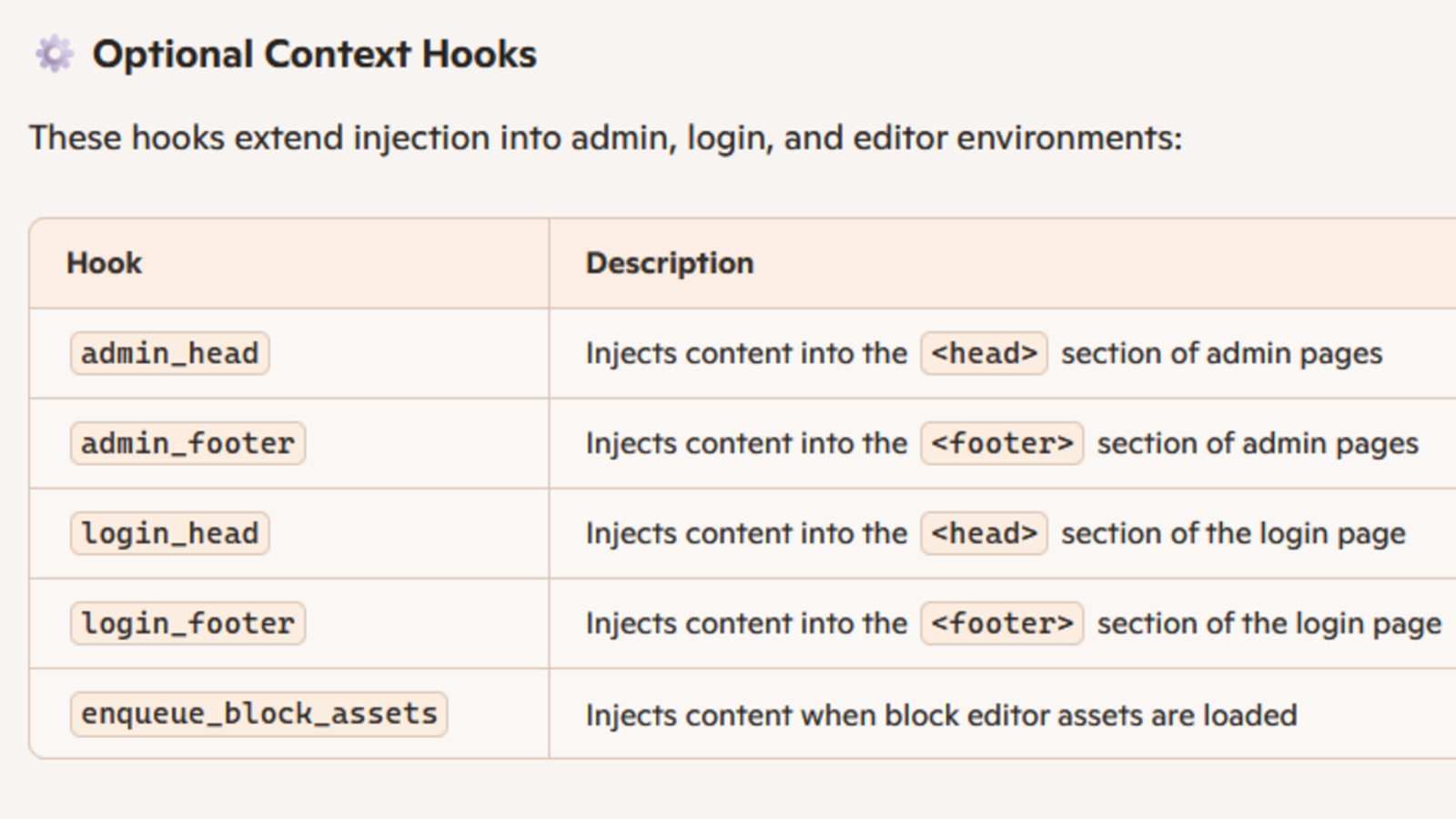
Optional Context Hooks
- admin_head – Injects content into the <head> section of admin pages
- admin_footer – Injects content into the <footer> section of admin pages
- login_head – Injects content into the <head> section of the login page
- login_footer – Injects content into the <footer> section of the login page
- enqueue_block_assets – Injects content when block editor assets are loaded
Usage
Administrators have access to both Raw and Safe modes. Trusted non‑administrators can be granted access to pre‑created blocks in Safe mode by assigning the `wpsc_admin` capability to their role, either through a role editor plugin or via custom code.
Usage with Block Snippet
- Install and activate WP Smart Content from the WordPress Plugins screen.
- Go to WP Smart Content → Add New Block in the admin menu.
- Enter a descriptive block name.
- Paste your HTML, CSS, or JavaScript into the respective tabs of the block editor.
- Select the desired mode: Raw Mode (unfiltered output) or Safe Mode (sanitized injection).
- Choose where to inject the block, such as:
- Header (wp_head) for scripts or tracking code
- Footer (wp_footer) for notices or widgets
- Before/after post content for banners or messages
- Block Hooks (WordPress 6.8+) for precise placement in the block editor
- Other classic hooks such as wp_print_scripts or wp_meta
- Configure targeting options:
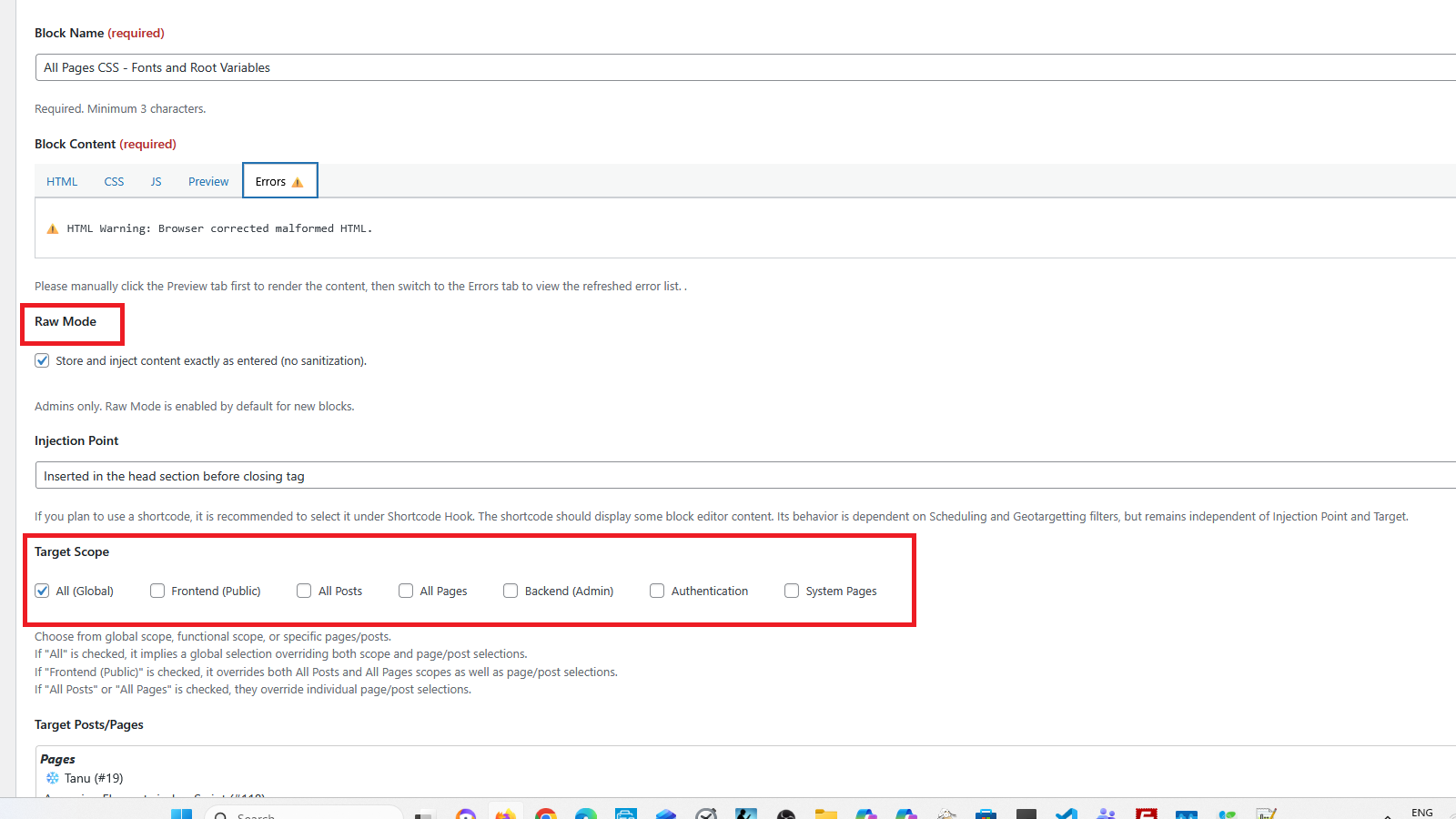
- Apply globally (All) or across specific site sections (Frontend, All Posts, All Pages, Backend, Authentication, System Pages) using Target Scopes
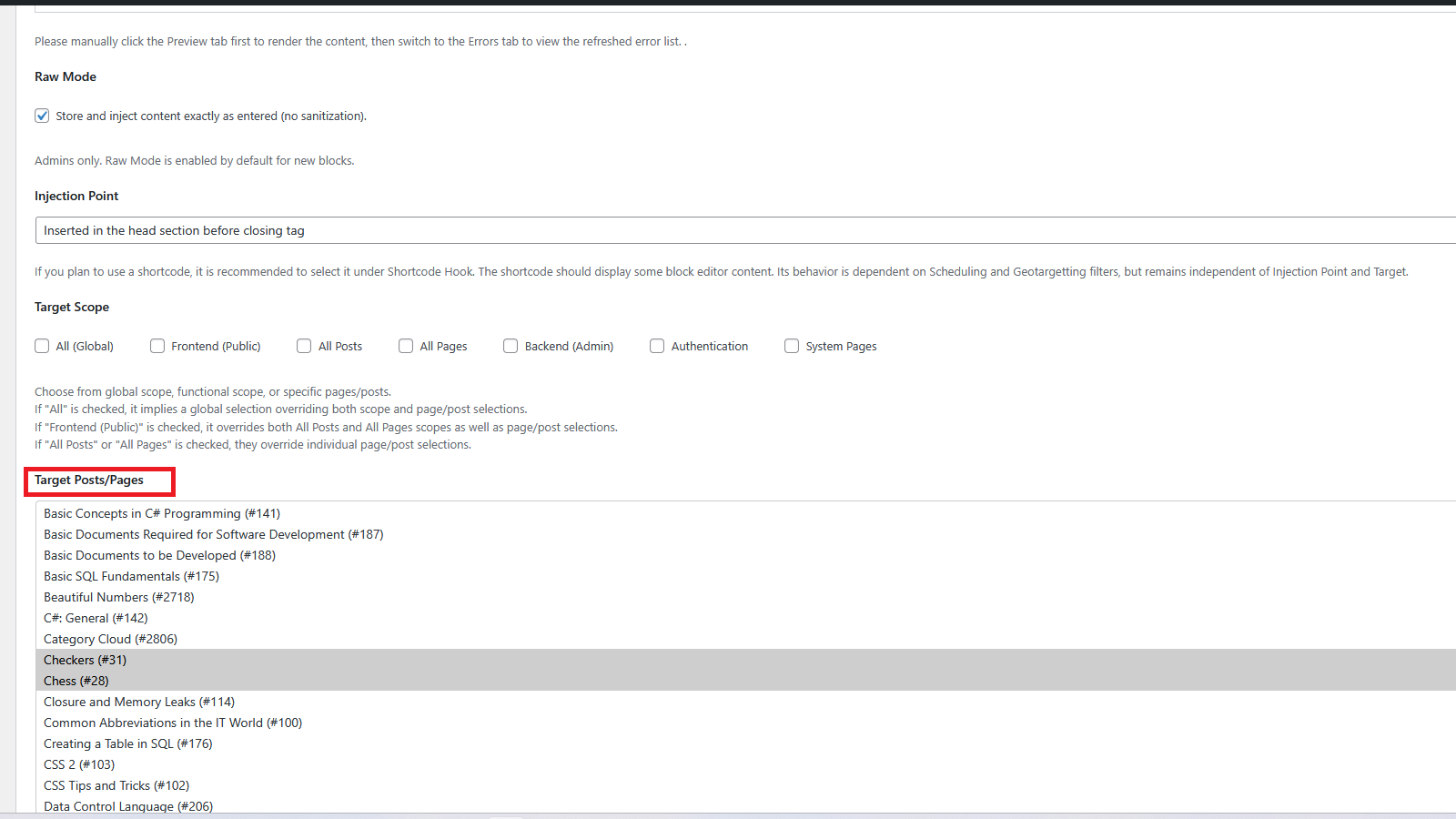
- Restrict visibility to selected posts or pages
- Set priority to control execution order when multiple blocks use the same hook.
- Define scheduling by assigning start and end dates so snippets appear only when needed.
- Configure geotargeting to display blocks based on inclusion or exclusion of selected countries.
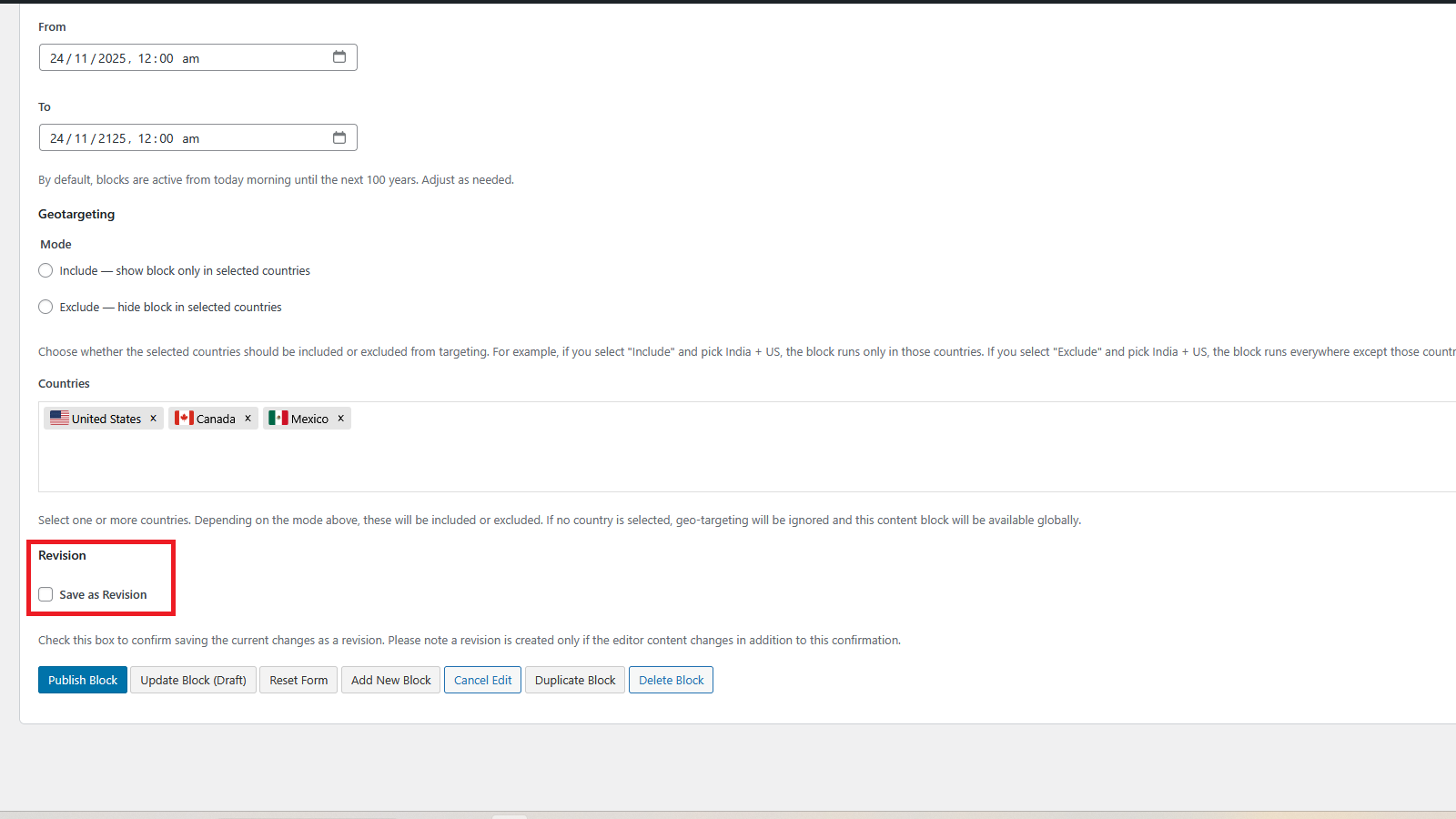
- Enable revision saving by checking the “Save to revisions” option.
- Publish the block.
- Result: Your scripts, styles, or HTML are injected as configured. Blocks can be managed from the block listing — edit, enable/disable, publish/unpublish, or delete anytime.
Usage with Block UI
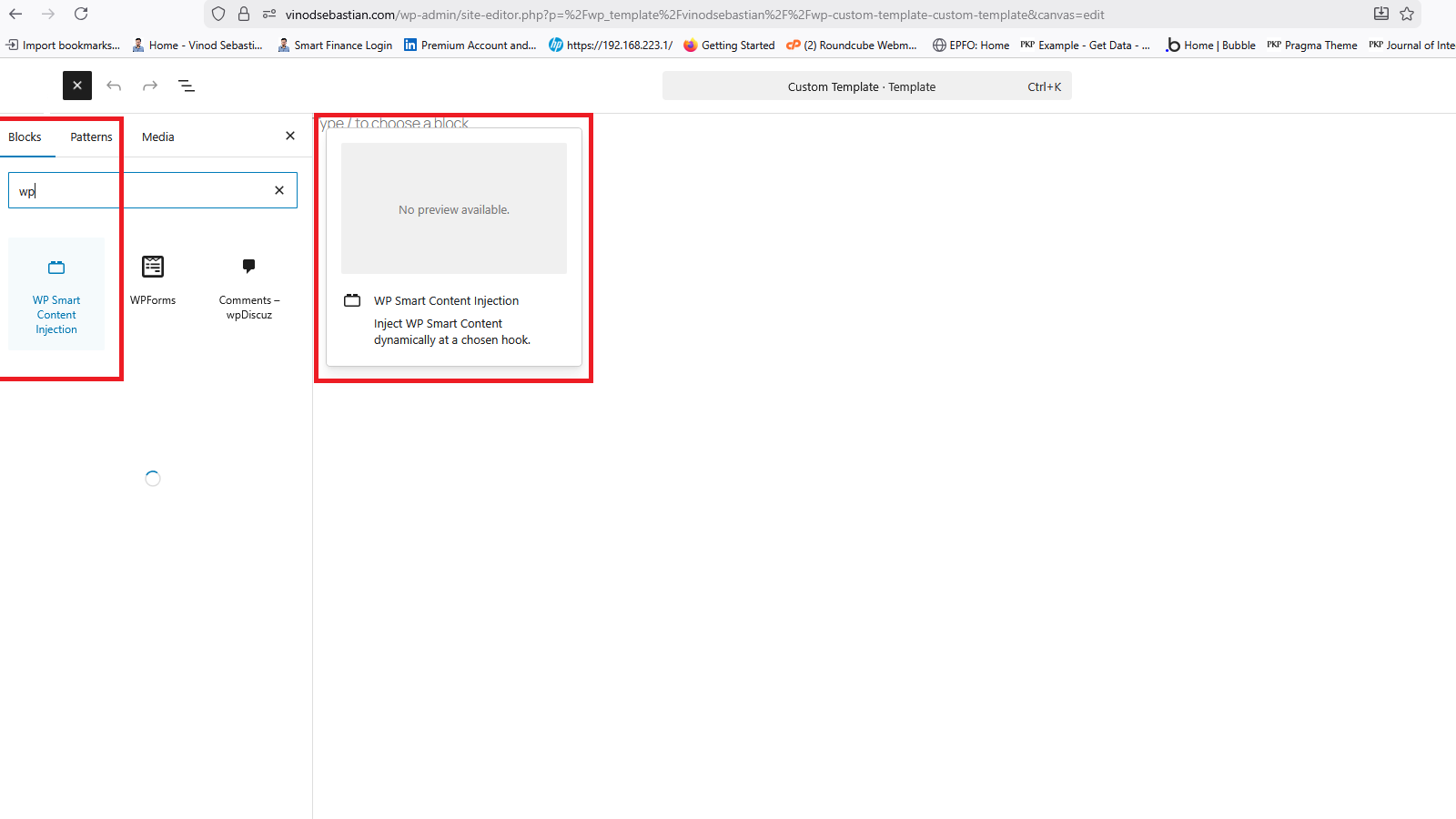
- Once WP Smart Content is activated, open the Site Editor (Appearance → Editor) for your block theme.
- Locate Block Hook areas (header, footer, before/after post content, sidebar).
- From the block inserter (+), add the “WP Smart Content” block or select an existing block to edit its injection hook.
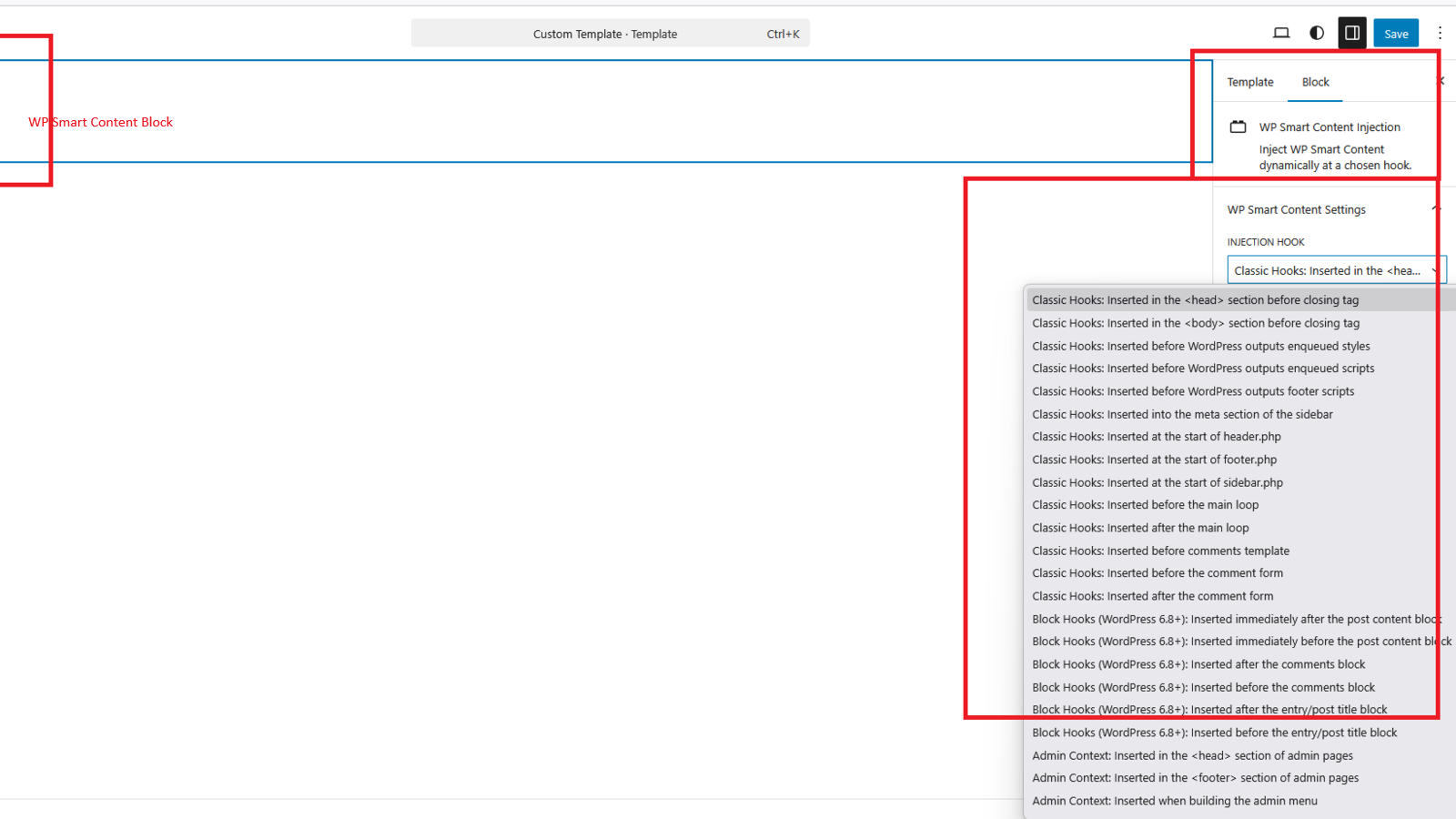
- Use WP Smart Content settings in the right sidebar (Block tab) to select an injection hook. This links your stored block snippet to the chosen hook.
- Save the template. Your snippet will be injected automatically at the chosen location.
- Result: Scripts, styles, or HTML from the block editor are added via the Block UI without editing theme files, fully compatible with block themes.
Usage with Shortcodes
- Place the shortcode directly in your post, page, or widget:
- Replace “blockname” with the name of your Smart Content block.
- Result: Scripts, styles, or HTML from the block editor are added at the exact position where the shortcode is placed, respecting publish status, scheduling, and geotargeting.
- Example:
[wp_smart_content name="header-banner"]
→ This will display the “Header Banner” block inline inside your post/page content.
Geotargeting Setup Notes
WP Smart Content provides geotargeting support using two options:
- Default (Country.is API)
- No setup required.
- Uses the free Country.is API to detect visitor country by IP.
- Ideal for lightweight use cases such as banners, compliance notices, or regional campaigns.
- Fallback / Advanced (MaxMind GeoLite2 Database)
- For users who prefer to store IP data locally.
- Requires the GeoLite2 Country database (MMDB format) created and licensed by MaxMind.
- Due to licensing restrictions, the database cannot be redistributed within this plugin.
- Users must download and update the database directly from MaxMind.
Steps to enable MaxMind fallback:
- Create a free account at https://www.maxmind.com.
- Download the GeoLite2 Country database (MMDB format).
- After downloading the GeoLite2 Country database (GeoLite2-Country.mmdb), place the file here:
‘/wp-content/plugins/wp-smart-content/maxmind-db-reader/data/GeoLite2-Country.mmdb’ - Update the database regularly as required (MaxMind releases monthly updates).
Result:
- By default, WP Smart Content uses Country.is for geotargeting.
- If the MaxMind database is present at the path above, the plugin will use it instead, allowing local IP lookups and more control over data storage.
- If both methods fail, WP Smart Content defaults to rendering content to avoid breaking site functionality.
Installation
- Upload ‘wp-smart-content’ to the ‘/wp-content/plugins/’ directory.
- Activate the plugin through the *Plugins* menu in WordPress.
- A new top‑level menu called *WP Smart Content* appears in the WordPress admin sidebar.
Frequently Asked Questions
Q. Why doesn’t my header script show up?
A. The template may not support the chosen hook. Don’t worry — it won’t break your site.
Q. My site broke after installation!
A. Unpublish or delete the content pushed through the plugin. Ensure the content added is valid HTML, CSS, or JavaScript.
Q. I still have plugin conflicts or the site looks messy.
A. Try selectively disabling other plugins to identify conflicts.
Q. How do I uninstall the plugin?
A. Just uninstall it. No residual data or issues will remain.
More questions? Please use the WordPress.org support forum for WP Smart Content: https://wordpress.org/support/plugin/wp-smart-content
Screens
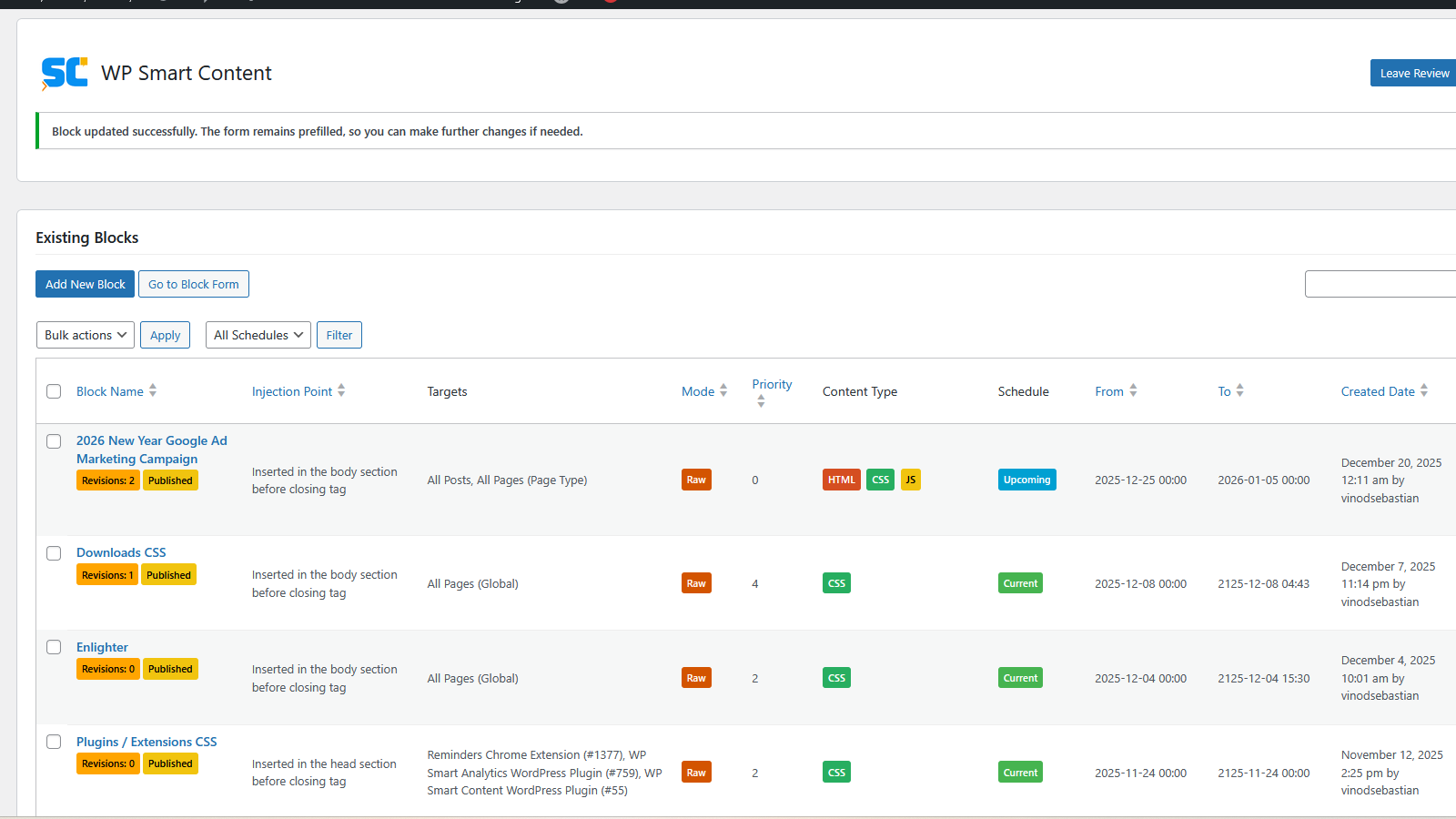
- Block List
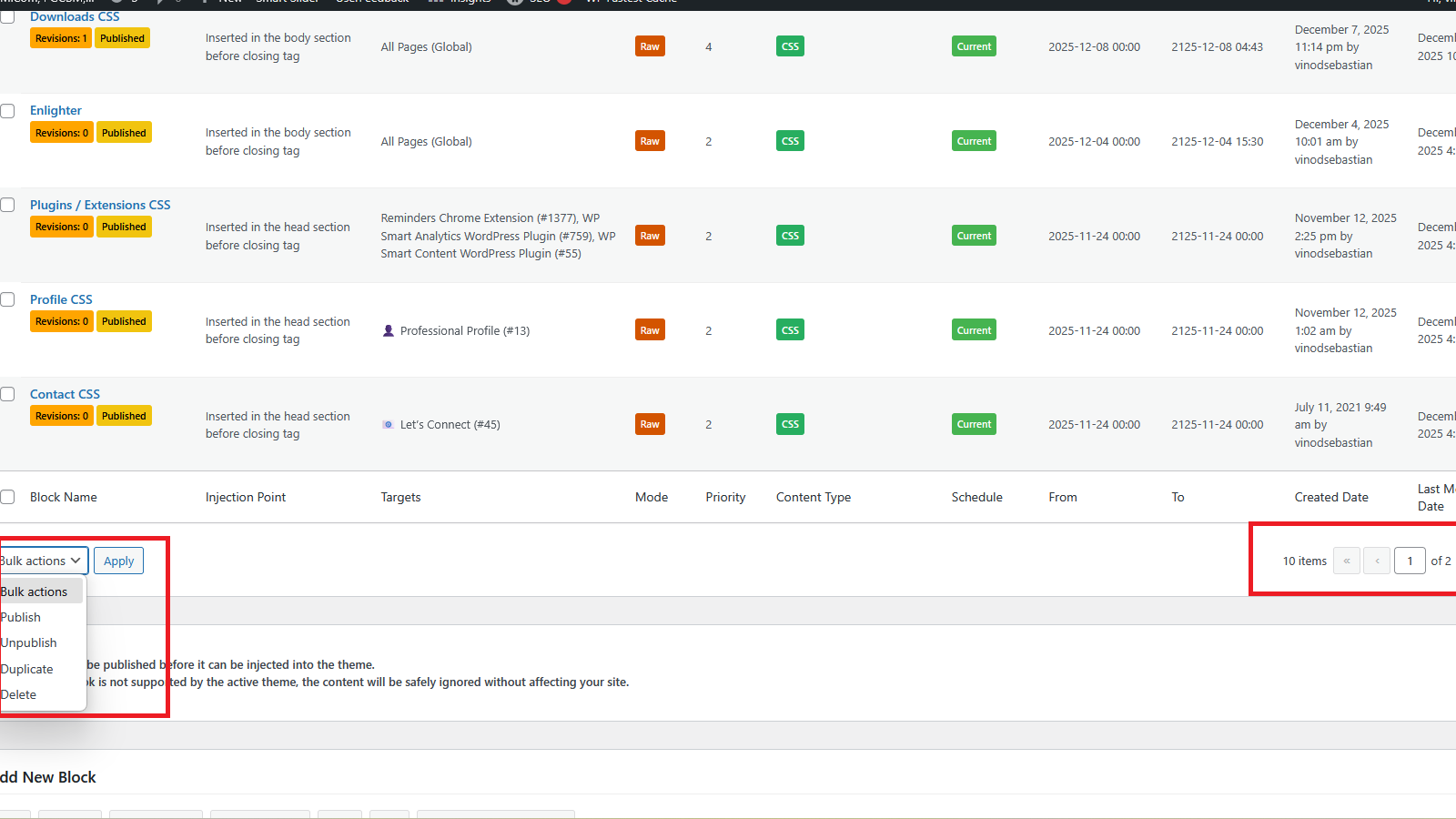
- Block List with Pagination and Bulk actions
- Block Form with Block Name and Block Content
- Block Form with Block Name and Block Content (Error)
- Block Form with Injection Point #1
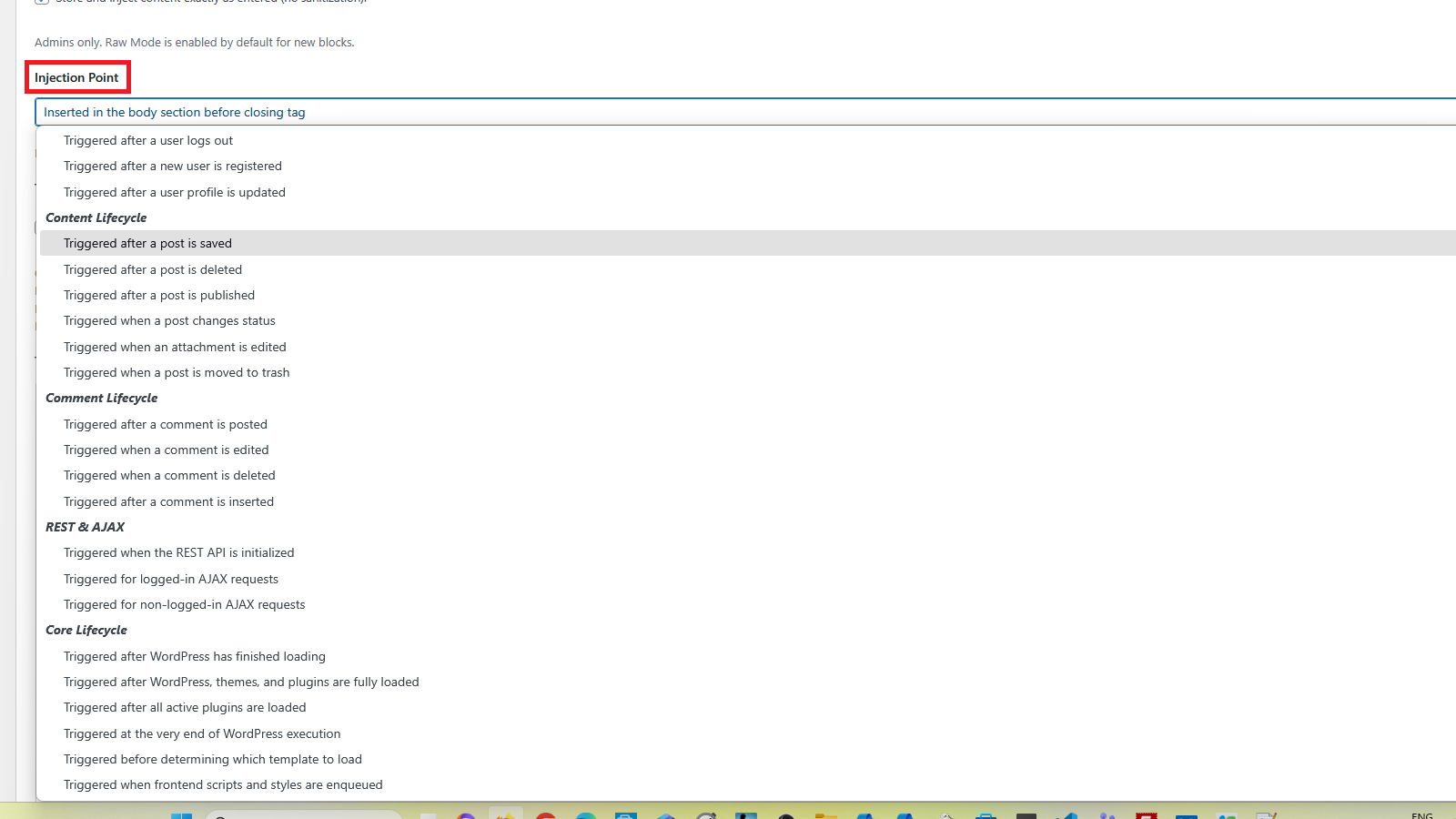
- Block Form with Injection Point #2
- Block Form with Raw Mode and Target Scope
- Block Form with Target Posts / Pages
- Block Form with Priority, Schedule, and Geotargeting
- Block Form with Save as Revisions
- Revision Block
- Classic Hooks Reference
- Block Hooks Reference (WordPress 6.8+)
- Optional Context Hooks Reference
- Injecting content anywhere on the theme from blocks UI – Placement
- Injecting content anywhere on the theme from blocks UI – Injection Point